The New & Improved myByram Sign-In Experience
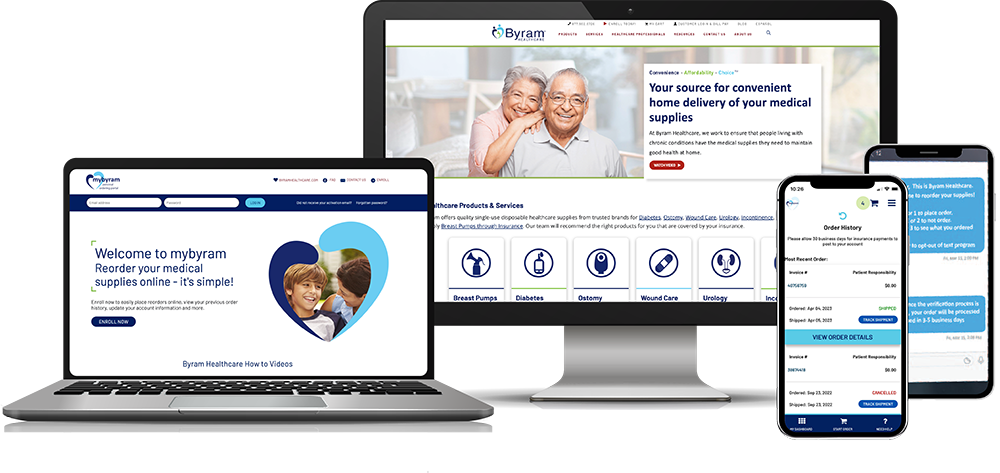
We’ve introduced an improved sign-in experience for both the myByram website and mobile app to make accessing your account simpler, faster, and more convenient.
What’s New with mybyram Sign-In?
The new mybyram sign-in experience brings several updates that give you more control over how you sign in.
- Email or Phone Number + minimum 12 character passwords
- Password resets using one-time passcodes (OTP)
- Passwordless sign-in using one-time passcodes (OTP)
- Biometric sign-in on mobile app (Face ID or Touch ID via Passkeys)
- Remember This Device option to skip extra verification for 30 days
- Multi-Factor Authentication (MFA) for extra security (password + OTP)
These enhancements are designed to make your sign-in process more convenient.
Existing mybyram Users: How to Sign In
The first time you sign in on or after the new experience launches, you’ll go through a short, guided process:
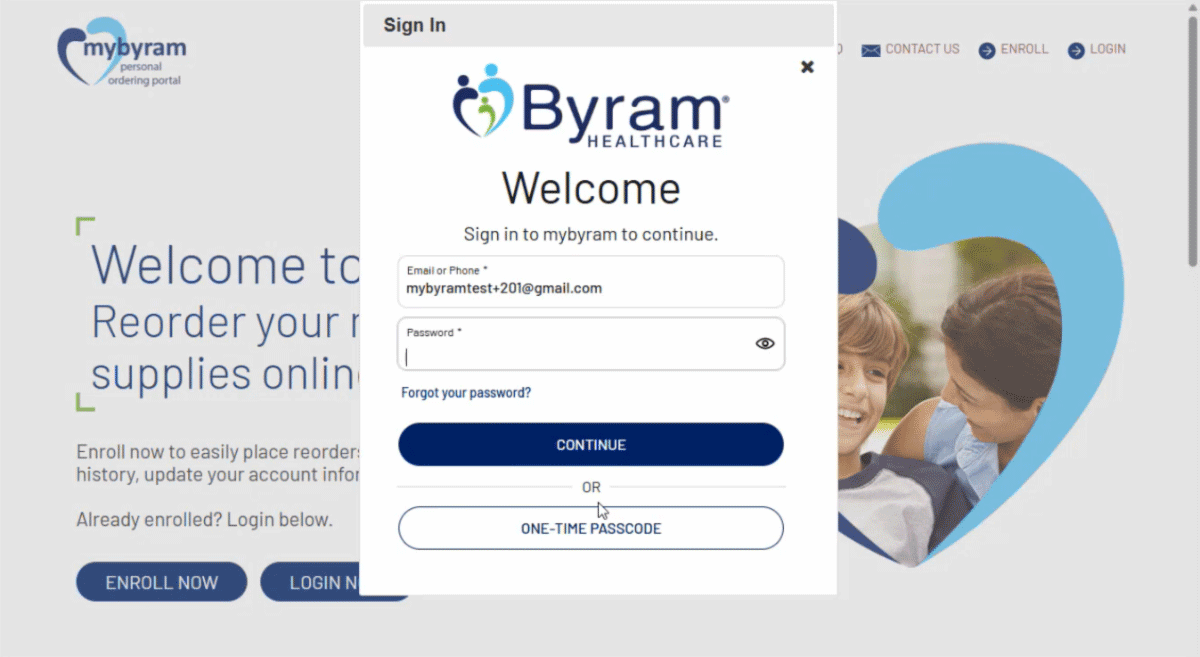
1. Sign in with your email and current password
This starts the updated sign-in flow.
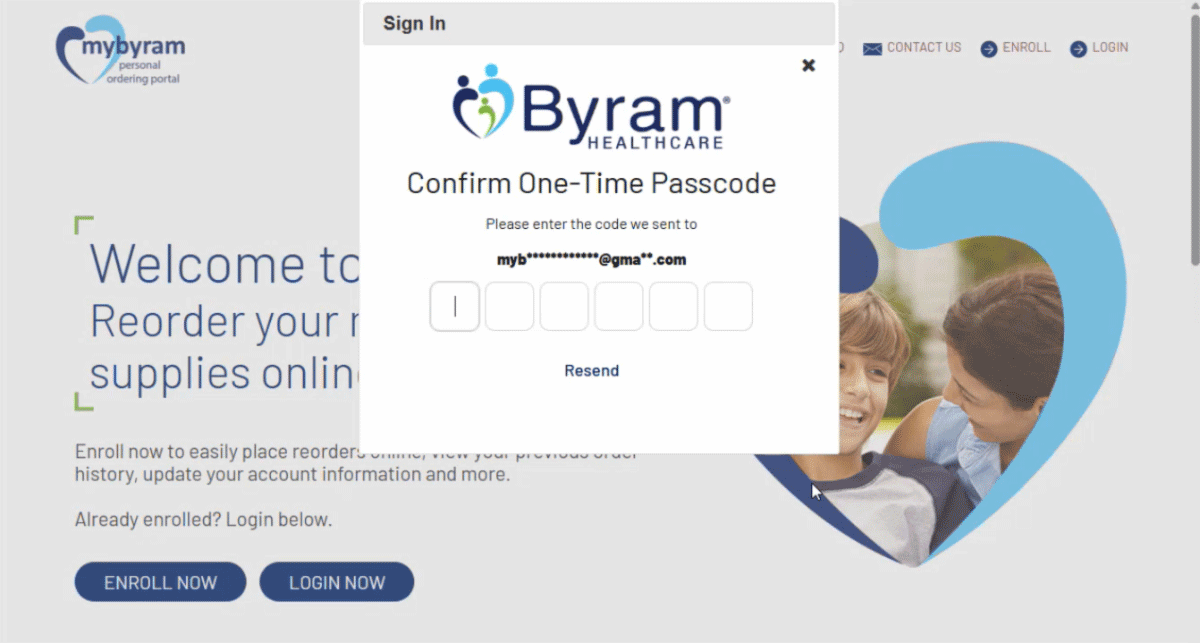
2. Enter your one-time passcode (OTP)
Check your email for the 6-digit code, enter it, and click Continue.
3. Create your new password
This is a one-time update that ensures your password meets new security standards and works seamlessly across the website and mobile app. Once finished, click Continue.
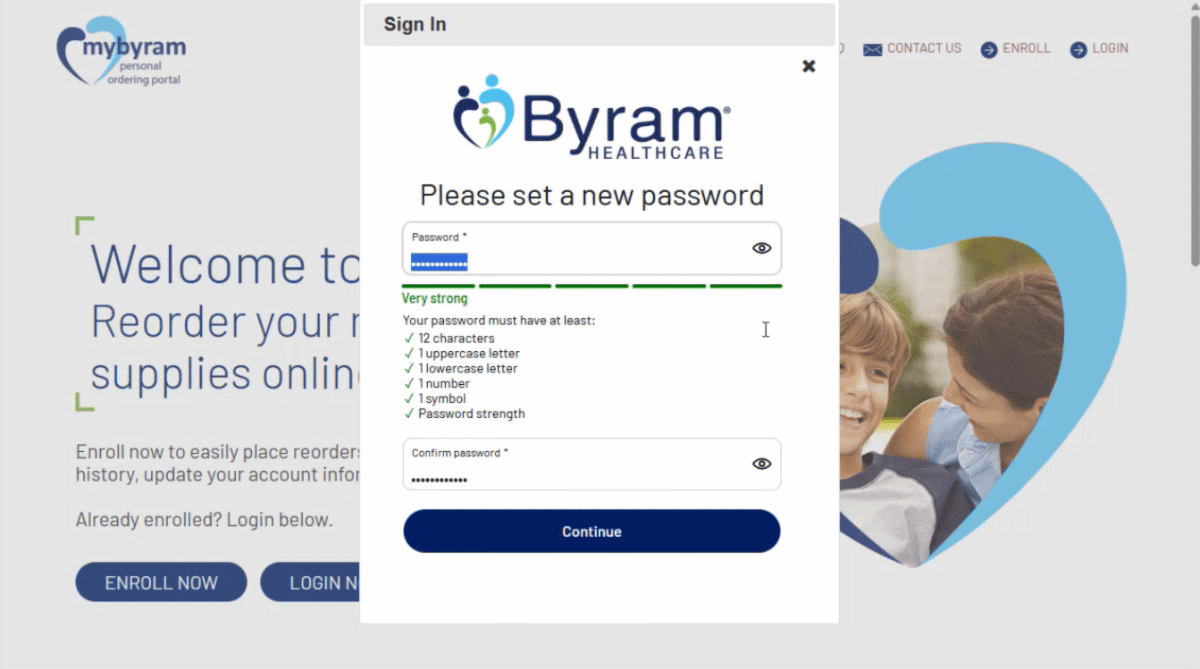
4. Choose how you’d like to sign in next time
You can use:
- Email + password
- One-time passcode (OTP)
- Fingerprint or Face ID sign-in on the mobile app (existing users must re-enable biometrics using the Biometrics Passkey option)
- Remember This Device to skip extra verification for 30 days
New Users: Enrolling in mybyram
If you’re creating a mybyram account for the first time, enrollment is quick and secure:
- Click Enroll
- Enter your email address or phone number on file with Byram. Once entered, click Continue
- Enter the one-time passcode sent to your email or phone and click Continue
- Create your password, then click Continue
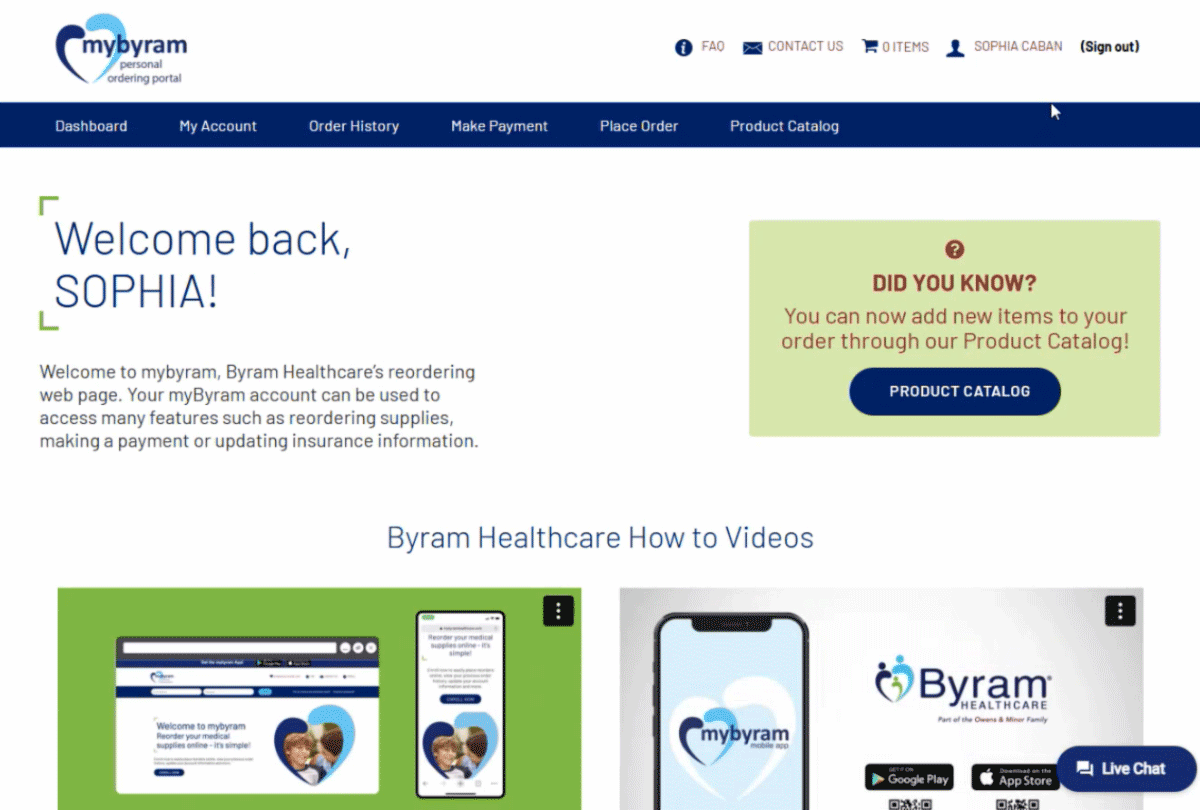
- You’ll be taken right to your dashboard
This streamlined enrollment process helps you get started quickly and securely. After enrolling, you can choose from several flexible sign-in options for future logins.
Your Sign-In Options
Once your account is set up, you can sign in using any of the following methods:
Email or Phone Number + Password
A familiar option that works across devices.
One-Time Passcode (OTP)
Skip the password and sign in using a code sent to your email or verified phone number.
Biometric Sign- In (Mobile App)
Unlock the mybyram app using your fingerprint or face. Enable biometric sign-in using the Biometrics Passkey option on the sign-in screen.
Multi-Factor Authentication (MFA)
Add an extra verification step using a one-time passcode in addition to your password.
MFA is optional today but may become required in the future.
Save trusted devices to skip extra verification for 30 days.
Forgot Your Password? No Problem.
Resetting your password is fast and easy:
- Enter your email or phone number (whichever you use to sign in)
- Select “Forgot your password?”
- Enter the one-time passcode sent to your email or phone
- Create a new password
Frequently Asked Questions
Why do I need to create a password?
This is a one-time update ensures your password meets updated security standards and works seamlessly across the mybyram website and mobile app.
Will I have to use a one-time passcode every time I log in?
No. After your first login, you can choose the sign-in method that works best for you — email or phone number + password, one-time passcode only, or biometric login on mobile. You can also select “Remember this device” to skip extra verification for 30 days on trusted devices, and opt in to Multi-Factor Authentication for extra security (email or phone number + password + one-time passcode).
What if I don’t receive my one-time passcode (OTP)?
Check your spam or junk folder, make sure your email is correct, and then click Resend.
If you’ve verified a phone number, your one-time passcode may also be sent via text message or voice call.
What is Multi-Factor Authentication (MFA)?
MFA adds a quick additional verification step — using a one-time passcode sent to your email or phone in addition to entering your email or phone + password. It’s optional at launch and can be turned on or off in your account settings.
Can I sign in without a password?
Yes. You can choose to sign in using a one-time passcode (OTP) only. A code will be sent to your email or verified phone number each time you sign in. If you run into login issues, use the Live Chat function on mybyramhealthcare.com for assistance.
What does “Remember this device” mean?
This option allows trusted devices to skip extra verification for faster access for 30 days.
You may need to re-verify if you clear cookies, update settings, or switch devices.
How do customers enroll in mybyram?
Customers can enroll after their first order has shipped by completing a simple enrollment flow:
- Click Enroll
- Enter and confirm your email or phone number on file
- Enter the one-time passcode sent to your email or phone
- Create your password
- Start using your mybyram account immediately
What if I try to enroll but I get a message that my account already exists?
If you see a message that your account already exists, simply log in using:
- Your email + password, or
- A one-time passcode, or
- The Forgot Your Password? option to reset it with a one-time passcode
If you still cannot sign in, use the Live Chat function on mybyramhealthcare.com for assistance.
Can I use fingerprint or face sign-in?
Yes. On the mobile app, you can enable biometric sign-in — fingerprint or face recognition — after your first successful sign-in using the Biometrics Passkey option.
What should I do if the app says my device does not support biometric recognition?
If you see this message, your iPhone setting for AutoFill Passwords and Passkeys may not have the Passwords toggle turned on.
To enable it:
- Open Settings on your iPhone
- Select General
- Tap AutoFill & Passwords
- Under Passwords, turn the toggle ON (green)
- Return to the myByram app sign-in screen
- Select Sign-In with Biometrics and follow the prompts
If the issue continues, confirm that Face ID or Touch ID is enabled on your device and that your iOS software is up to date.
How do I reset my password?
You can reset your password anytime using a one-time passcode:
- Enter your email or phone number (whichever you use to sign in)
- Select “Forgot your password?”
- Enter the one-time passcode sent to your email or phone
- Create a new password
Who can I contact if I need help?
If you have questions or run into sign-in issues, use the Live Chat function on mybyramhealthcare.com.